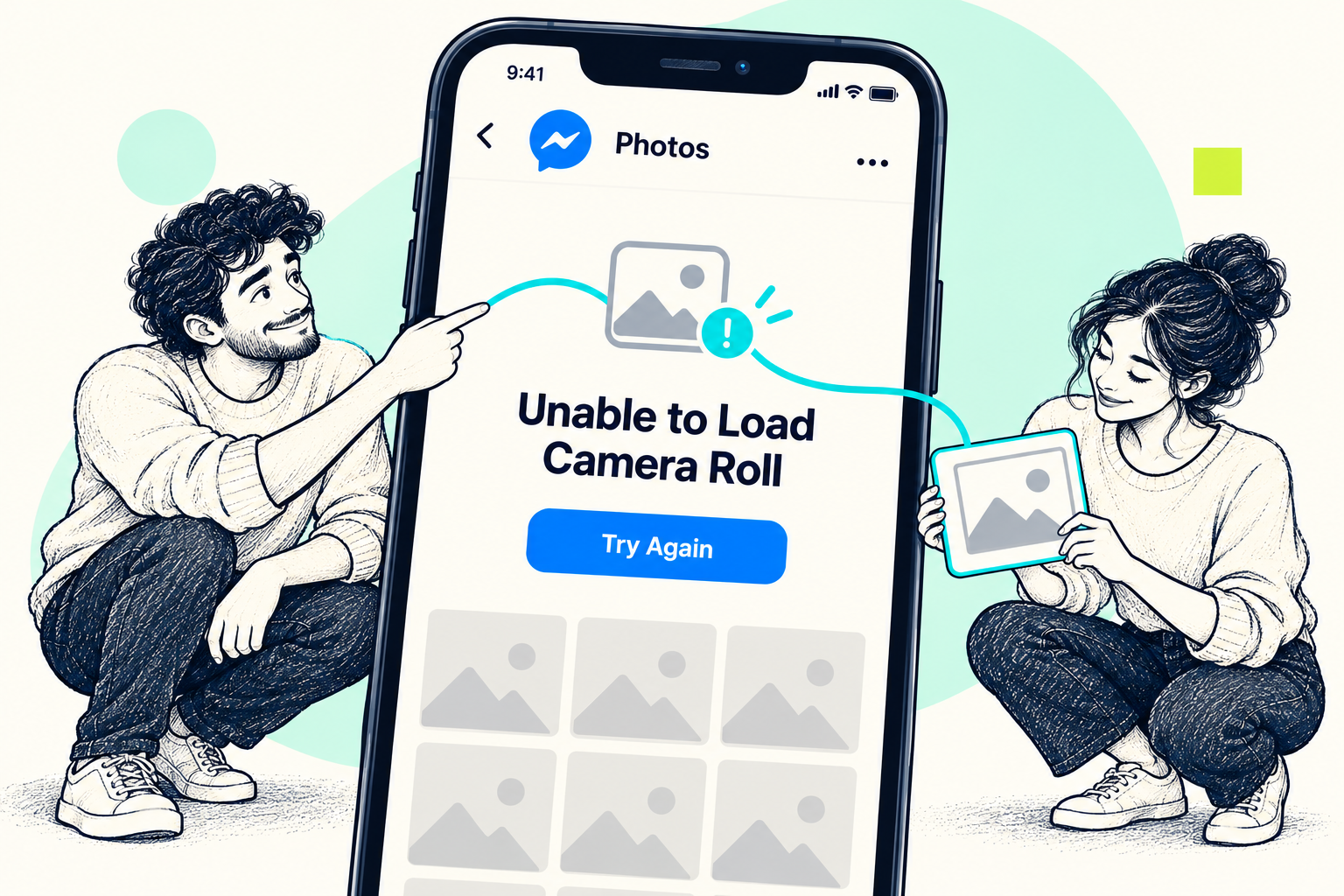
You open a Messenger chat, tap the gallery button, and get “Unable to load camera roll” instead of your photos. Start with access to your photo library and basic app troubleshooting. This message alone does not establish that your account was hacked or your pictures were deleted.
START HERE
The short answer
Check which photos Messenger can access, close and reopen the app, and install any available update. If you use limited access, add the picture you want to share. You do not automatically need to expose your entire photo library.
1. Check photo access on iPhone
Open Settings, then Privacy & Security → Photos, and select Messenger if it appears. Review its access. With limited access, only the photos you selected are available to the app; add the missing items to that selection.
Choose full access only if you want Messenger to see the whole library. The labels and available controls vary by iOS version and the permissions the app requests.
2. Check Photos and videos on Android
Open Settings → Apps → Messenger → Permissions. Look for Photos and videos, or the equivalent media permission on your device.
On supported Android versions, selected-photo access can limit what appears. Review or expand your selected items rather than assuming an empty picker means the photos are gone.
3. Refresh the app before making bigger changes
Close Messenger completely, reopen it, then restart the phone if needed. Check the App Store or Google Play for an update. Meta also recommends a reliable internet connection and sufficient device storage when troubleshooting sending problems.
Try one photo again after each change. This helps you identify which step made a difference.
4. Protect your chat history before reinstalling
Reinstallation is a later troubleshooting step, not the starting point. Apple warns that deleting an app can remove locally stored data.
Before proceeding, confirm you can sign in and restore Messenger’s encrypted chats using your existing secure-storage method, such as your PIN. Do not delete or reset secure storage just to fix a gallery error: deleting it permanently removes the encrypted backup.
5. Still stuck? Document the problem
Use Messenger’s in-app help to report it. Include the exact message, phone model, operating-system and app versions, and the steps that trigger it. Redact private conversations from screenshots.
This is a troubleshooting sequence, not a confirmed diagnosis of a current Messenger outage.
Common questions
Do I need to allow access to all photos?
No. Apple and Android support sharing selected items. First check whether the photo you need is included in the selection you allowed.
Will reinstalling Messenger definitely fix the error?
No. It may not resolve the cause, and restoring encrypted history can require your existing recovery method. Check permissions and updates first.
A guide is a good start.
A person can help with the next step.
Explore Medalock’s recovery support and the options included with Expert. Platform decisions remain with the platform.
Sources & further reading
This original guide combines official help guidance with the supplied topic reference. Menu names and options can change.
- Apple: Control access to information in apps on iPhone ↗Official source
- Apple: Limited photo-library access ↗Official source
- Google: Change app permissions on Android ↗Official source
- Android: Selected Photos Access ↗Official source
- Apple: Troubleshoot an app that does not work as expected ↗Official source
- Meta: Unable to send messages on Messenger ↗Official source
- Meta: Restore encrypted chats with a PIN ↗Official source
- Meta: Reset a security method for encrypted chats ↗Official source
- Followchain: Original topic reference ↗Topic reference